WordPress
Website Redesign for Photographer Donald Weber (2007)
Proudly announcing the redesign of Donald Weber Photojournalism! Don Weber is Canadian, based in Moscow. He’s published in Newsweek, Time, Maclean’s, The New York Times, The Globe & Mail, others.
The site features big, 800px images and is built on WordPress. It’s valid XHTML 1.0 Strict.
Check out Donald Weber Photojournalism.

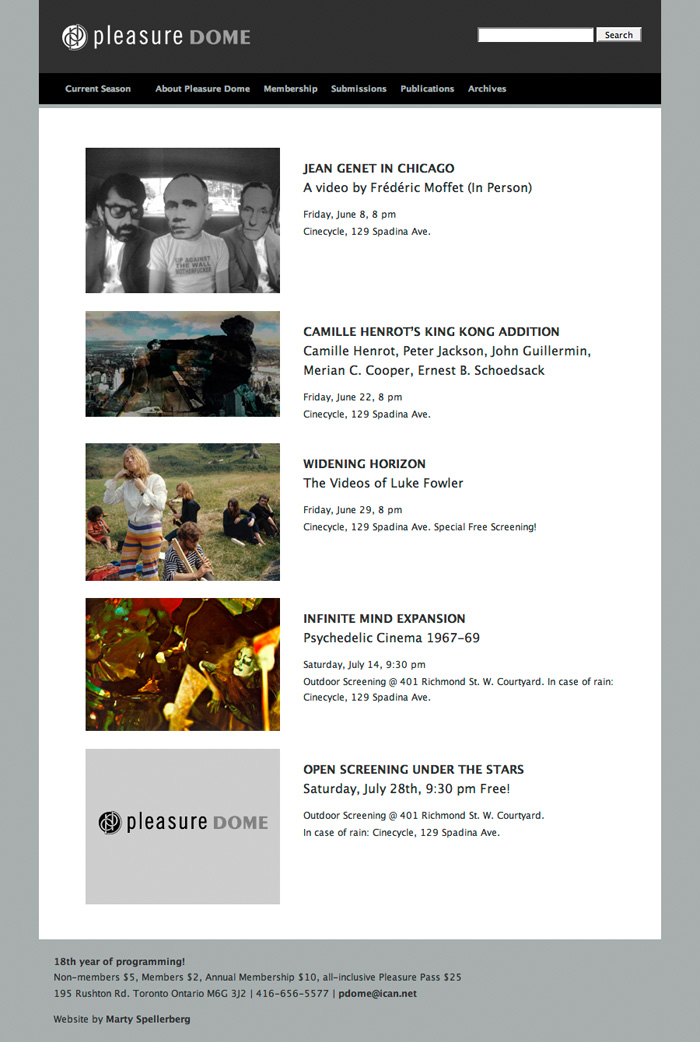
Pleasure Dome Website Redesigned
Announcing the redesign of Pleasure Dome! Now in it’s 18th year of programming, Pleasure Dome is a year-round film and video exhibition group dedicated to the presentation of experimental film and video.
The site is built on WordPress, and features posters by Sameer Farooq, NEW INK. It comes with two pieces of documentation – a screencast and a manual.
Check out Pleasure Dome!

Superslackers Website Refreshed
Announcing a site-wide update of Superslackers! Produced by Steven Charles Manale, Superslackers is published weekly by The Toronto Star and is nominated for Top Canadian Web Comic, Joe Shuster Awards.
The site is built on WordPress and is Valid XHTML 1.0 Strict.
Check out Superslackers!

Bell Festival Centre Website Redesigned
Proudly announcing the redesign of Bell Festival Centre! Coinciding with the groundbreaking at King and John Streets in Toronto, the website was created in-house at the Toronto International Film Festival Group by developer Marty Spellerberg and programmer Gabriel Perez.
Check out Bell Festival Centre!

Converting the AGO blog from Serendipity to WordPress
Hi there. Been busy, but not posting any of it here. Will attempt to catch up, somewhat. This one will be about some recent work on the Art Gallery of Ontario blog, Art Matters.
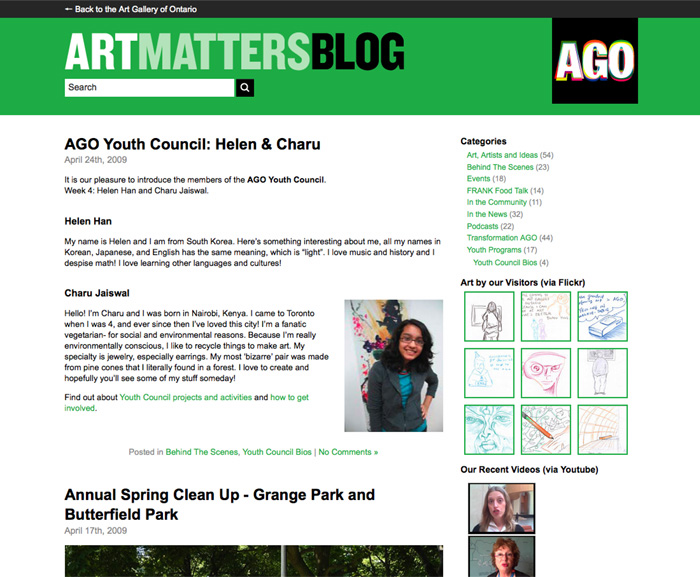
The Art Gallery of Ontario blog was running S9Y, and it was rough. You could tell when someone was entering a post because they’d start cussing. Myself included. It seemed to me the platform was handicapping the project and needed to be upgraded.
Because of the legacy data that needed to be migrated, this project was really about using Technosailor’s Serendipity importer for WordPress. This plug-in made the whole thing feasible.
Our installation hadn’t been upgraded in years, so the first thing was to upgrade Serendipity to the version the plug-in likes (not the latest one). Fine. There was some tweaking to do of the plug-in code, as discussed in the documentation/comments. Fine.
The big hiccup was that the importer had trouble with special characters in the posts. When it came to a non-validating character it would just stop and skip to the next. Also, it lost the authors and the category assignments.
No doubt, these issues could be fixed and the plug-in could be made to run like a dream. But for the number of posts I had I decided it would be quicker to just do it by hand.
Even so, the plug-in was essential. It created entries for everything with timestamps and, importantly, migrated the comments. Post bodies and categories (author assignments were irrelevant) were a matter of a couple hours copying and pasting.
(If you’re thinking, “copying and pasting?! What a lightweight!” well, you know where the comment box is, big shot.)
The last part was forwarding the permalinks and feeds, which was solved with a library of case statements.
While the process was less elegant that it could have been, I’m very happy to have made the move. Skinning in WP is more nuanced than in S9Y, and of course there’s plug-ins for all functionality under the sun. The content editors are happy with the interface, and we’re moving more and more features to the blog. On that front we’re just getting started, and the WP platform makes it possible.
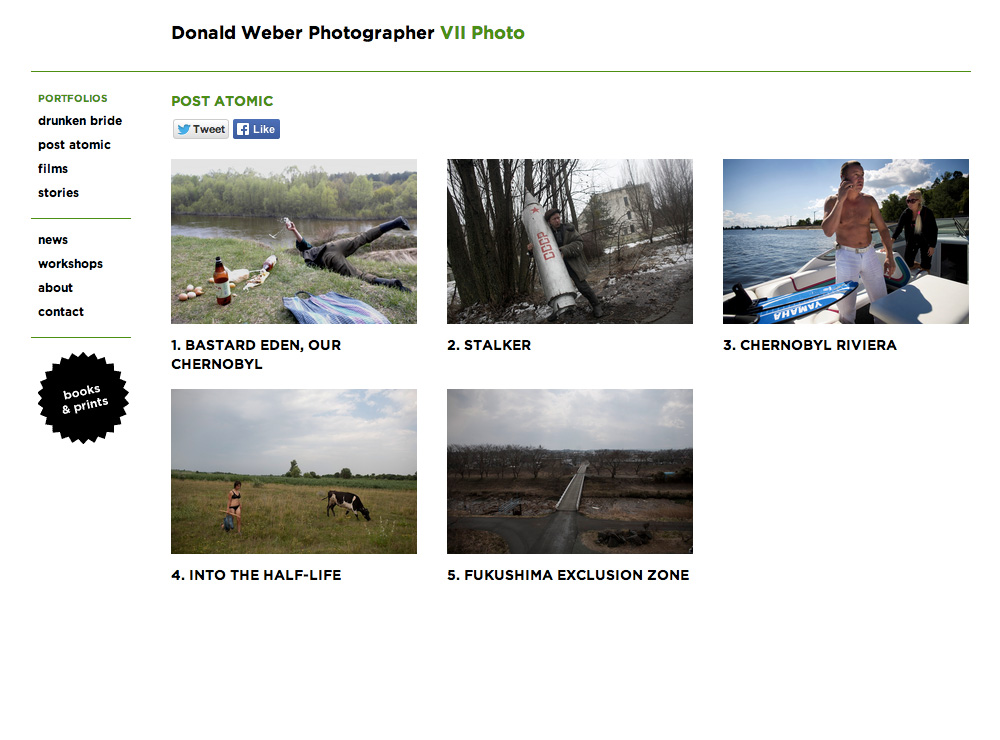
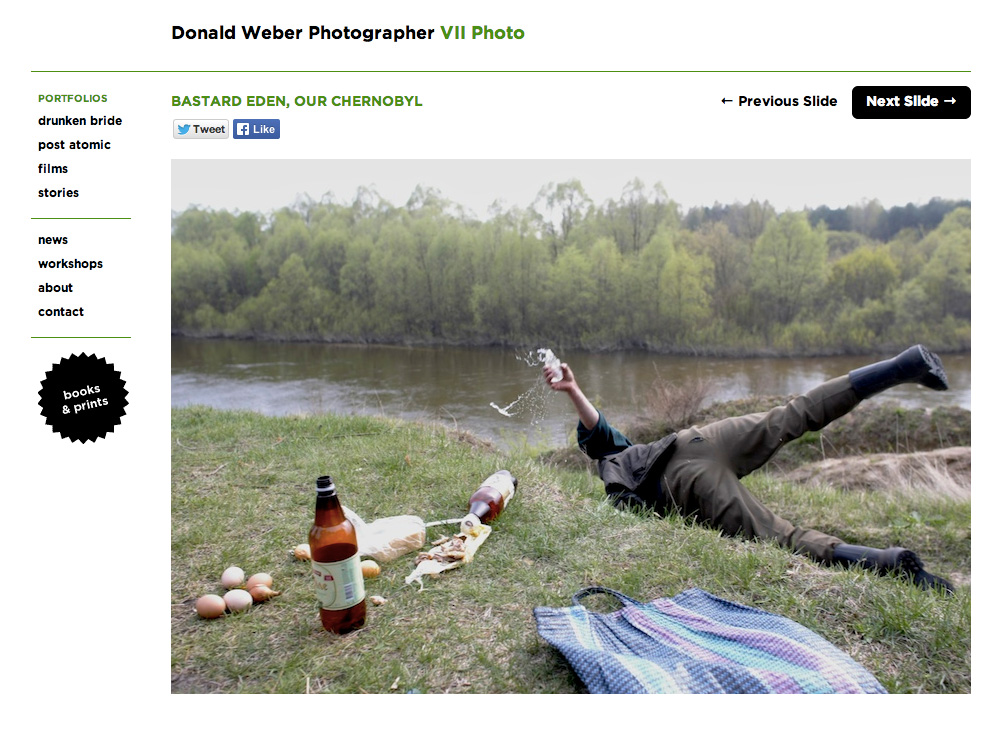
Website Redesign (2010) for Photographer Donald Weber
The 2010 redesign for Donald Weber’s WordPress-based website features a side-scrolling slideshow for the narrative presentation of images as well as pages for the promotion of the photographer’s books and grant-writing workshops.
Donald Weber’s website is hosted by MediaTemple.

WordPress 3.0 Network Domain Name Mapping on MediaTemple
I’m really excited about the new Network feature in WordPress 3, which allows you to run many sites off the same install. I’m hoping this makes it easier to keep my friends’ sites up-to-date and malware free.
I installed WordPress at 0003.org and am running the second site kateschneider.net off of it. Here’s how:
1. Follow the standard WordPress installation instructions. Give some thought to where you want to put this, as you won’t want to change it later.
2. Follow the codex instructions to Create A Network. You have a choice between subfolders and subdomains; I went with subfolders. Subfolders turned out to be a problem for root-relative links in sites whose domains aren’t yet attached, so I re-started with subdomains.
3. Go ahead and add the second site using Super Admin -> Sites.
4. Next, follow Otto’s Domain Mapping plugin tutorial. I found you don’t need to use the “mu-plugins” folder, It turns out there is a good reason to use the mu-plugins folder and it stands not for “multiuser” but “Must Use”; but IMPORTANTLY, you DO need to use the trunk version rather than the standard version. It looks like they’ve updated the plug-in so now it’s cool.
5. Otto says that when it comes to mapping the domain, all hosts are different. MediaTemple users will want to follow the KB instructions for Pointing Multiple Domains to the Same Alternate Domain Folder. (In their example, “mt-example.com” would be the name of the domain where you’ve installed WordPress, and “alt-example.com” the second site.)
6. Finally, go back Super Admin -> Sites and Edit the second site. Under Site Info there’s a checkbox for “Update siteurl and home as well”; uncheck that. Then scroll down and update the Siteurl and Home fields with the proper domain name.
Update 06/2015: After working for years, I noticed recently that this subfolder solution was no longer working. Not sure exactly when it crapped-out, but I noticed it with WordPress 4.2.2. So I no longer know of a solution for pointing subfolders to a multisite install.
That’s it — one WordPress, two sites! I hope the instructions make sense; please let me know if they don’t.
Cheers!
Migrating Directory Structures of Existing Blogs into a WordPress 3.0 Network
The WordPress Network adventures continue! In migrating existing sites, I found myself facing the challenge of keeping existing non-WP directory structures in place. In one case I had a WordPress site that had non-WP directories littering the root directory, and in another WordPress was installed not in the root but in a sub-directory.
In the first case I did not find an acceptable solution, but in the second case I did. (I should mention that my network uses the sub-domain structure.)
Case 1: Non-WordPress directories in the root
In this case, WP is installed at the root: example.com/. I also have directories at that level — example.com/foo — that contain what might be described as stand-alone, non-WP micro-sites. In the non-network install, WP was being cool and not interfering with them.
Moving it into the network, the site becomes number x. Since blogs.dir/x/files is served as example.com/files, I had hoped I could simply move the directories over as blogs.dir/x/foo and have them served as example.com/foo, but no dice.
What you CAN do is put the directories in the network root. The upside is that they appear as intended for the domain in question. The downside is that they appear for ALL domains in the network. In my case that’s unacceptable.
I’m hoping that in the future a plugin appears to address this issue, but for now the verdict is that it’s not possible. If you or someone you know is working on a plug-in for this, I’d happily put some beer money towards the cause!
Case 2: WordPress installed in a sub-directory
In this case, I have a domain where WP is installed in a sub-directory — example.com/foo/ — and a lot is going on in the other sub-directories. I wanted to migrate the blog without messing up the other directories.
So I created a symbolic link in place of the /foo folder to serve up the network site. Since I’m on MediaTemple, I used the directions in the trusty KB article to create the link. I navigated to the html folder of example.com and did:
ln -s /home/####/domains/wordpress-domain.com/html foo
(### being my server number, wordpress-domain.com being the domain where my WP network is installed, and foo being the directory in question)
When I mapped the domain (using the Domain Mapping plugin), I did so as example.com/foo. And under site properties I added /foo to the path. Doing these things lets me pull up the homepage. Awesome!
But there were two problems: logging-in, and permalinks.
Logging-in
With this mapping, I couldn’t log-in to the site. The problem appears to be that there was a discrepancy between the directory WP thought it was trying to log-in to, /foo/, and the directory where it was actually located, the root.
There’s a plug-in for that! From the description: “By default the wordpress cookie exactly matches the URL of your installation, this plugin removes any subfolders from the cookie so that your whole domain has access to it.”
Be sure to only activate the plug-in for the site in question and not your root site.
Pretty Permalinks
I ran into trouble when I clicked a permalink, or otherwise left the start directory as the rewrite rules from the WP domain’s .htaccess weren’t being applied.
So I grabbed some mod_rewrite code from a test installation, and compared it to that from the root domain. I determined which lines were needed for the file uploads, and which for the permalinks. The problem is that the last line, essential for the permalinks, redirects all requests (the “.” matches any character) through wordpress — including those to the domains we’re trying not to touch!
The way I managed to do it was to put in exceptions for the files and folders I wanted left alone. I would have preferred not to do it this way as it means I have to include a line for each one, but for the scale of the site I was dealing with it was no big deal. If someone knows of a solution that doesn’t involve exclusions, please let me know!
Here’s the finished mod_rewrite:
RewriteEngine On
RewriteBase /foo/
RewriteRule ^([_0-9a-zA-Z-]+/)?wp-admin$ $1wp-admin/ [R=301,L]
RewriteRule ^([_0-9a-zA-Z-]+/)?(wp-(content|admin|includes).*) $2 [L]

# here's the format for excluding files in the root
RewriteCond %{REQUEST_URI} !^.somefile\.html

# and here's the format for excluding directories
RewriteCond %{REQUEST_URI} !^/somedirectory

RewriteRule . /foo/index.php [L] |
And that’s it! I imported the site and now I’ve one less WP install to worry about. The site in question for this case, by-the-way, was halfempty.com/wp/.
Any questions or comments, please let me know. I hope this helps you in your own projects.
Website for Artist Flavio Trevisan
I’m happy to announce a new website for Toronto-based artist Flavio Trevisan. Flavio makes sculptures, mostly, based on maps. The site is a pretty straight-forward WordPress implementation. Check it out!

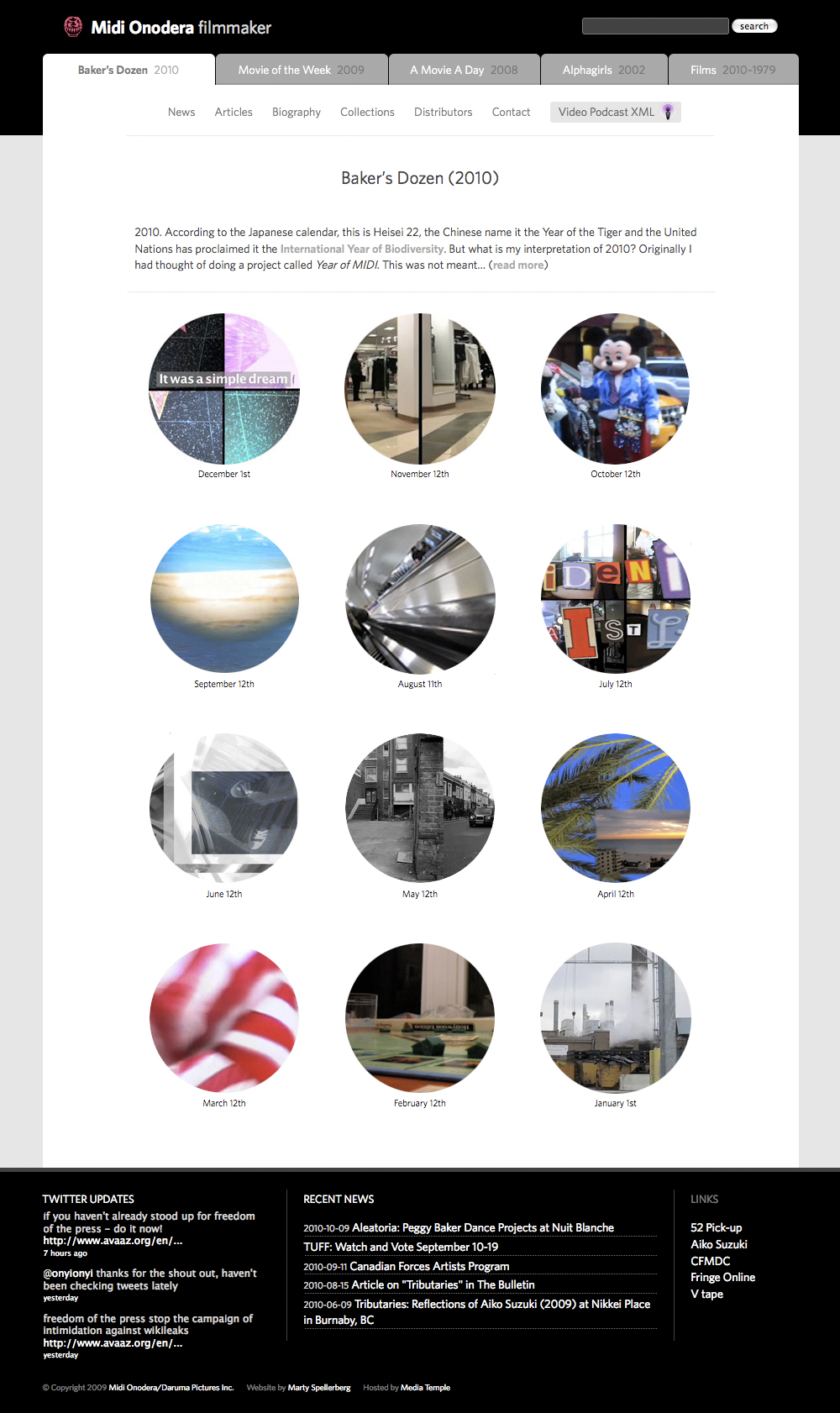
Website for Artist Midi Onodera
Midi Onodera is an award-winning Canadian filmmaker who has been directing, producing and writing films for over twenty years.
Creating a jQuery Slideshow of the WordPress Attachments Gallery
Since version 2.5 WordPress has included the ability to upload images and “attach” them to posts and pages. The user can upload a batch of images and the system will create copies at various sizes specified in the site settings. There’s an interface for setting an order and captions. It’s good, and I decided to make use of it for a site I’ve been working on.
The image set is normally included in the post by typing the shortcode in the post body. But in this case I didn’t want my users to have to bother with that — I wanted to call the gallery directly in the theme. And then I wanted to display the images using a simple sliding interface. Unlike my previous slideshow, this one needed to support many instances on a single page.
See an example of the jQuery in action | Download a ZIP of all the files
Insert the Attachment Gallery via the Theme
As helpfully explained in the WordPress codex, it’s very easy to call the gallery from the theme:
<?php echo do_shortcode('[gallery option1="value1"]'); ?> |
But I wasn’t satisfied with the HTML this outputs; I wanted to create my own, which meant adding a function. For this I am indebted to Dameian Lott’s WordPress Image Attachment Gallery (Revisited) post. His method has a lot of useful features and is meant to be really flexible so if you’re going to be doing customization I urge you to head over to his site, grab the full code and read his explanation.
I stripped it down to only the parts I needed. Specifically, I’m outputting the “large” size images, wrapped in certain markup:
Note: This function has been revisited in the post Showing Images from the WordPress Attachments Gallery. Use it instead!
function marty_get_images($size = 'large', $limit = '0', $offset = '0', $post_id = '$post->ID') {
	global $post;

	$images = get_children( array('post_parent' => $post_id, 'post_status' => 'inherit', 'post_type' => 'attachment', 'post_mime_type' => 'image', 'order' => 'ASC', 'orderby' => 'menu_order ID') );

	if ($images) {
		echo '<div class="gallery">';

		$num_of_images = count($images);

		if ($offset > 0) : $start = $offset--; else : $start = 0; endif;
		if ($limit > 0) : $stop = $limit+$start; else : $stop = $num_of_images; endif;

		$i = 0;
		foreach ($images as $attachment_id => $image) {
			if ($start <= $i and $i < $stop) {
			$img_title = $image->post_title;   // title.
			$img_description = $image->post_content; // description.
			$img_caption = $image->post_excerpt; // caption.
			$img_alt = get_post_meta($attachment_id, '_wp_attachment_image_alt', true);

				if ($img_alt == '') {
				$img_alt = $img_title;
				}

				if ($size == 'large') {
				$big_array = image_downsize( $image->ID, $size );
 				$img_url = $big_array[0]; // large.
				} else {
				$img_url = wp_get_attachment_url($image->ID); // url of the full size image.
				}
			?>

			<div class="image"><p><img src="<?php echo $img_url; ?>" alt="<?php echo $img_alt; ?>" title="<?php echo $img_title; ?>" /></p></div>

			<?php if ($img_caption != '') : ?>
			<div class="attachment-caption"><?php echo $img_caption; ?></div>
			<?php endif; ?>
			<?php if ($img_description != '') : ?>
			<div class="attachment-description"><?php echo $img_description; ?></div>
			<?php endif;
			}
			$i++;
		}
	}

		echo '</div><!-- End gallery -->';

} |
And then I call it in my theme like so:
<?php marty_get_images('large','0','0',"$post->ID"); ?> |
The jQuery Slideshow
Before getting into it, I want to say that there are a number of things about this code that are unresolved, and even as I go through writing these notes I’m seeing duplication that ought to be refactored/abstracted out. But I’m posting it here so as to assist others who, like me, are still learning this stuff. Any suggestions you have to improve this code are very welcome!
OK, first the CSS. I like to put as much of the CSS as possible into my stylesheet (as opposed to inserting it on the fly).
.gallerywrapper {width: 700px; overflow: hidden; }
.gallerywrapper .image {width:700px; float: left; }
.gallerywrapper .image p {margin-bottom: 0;}
.gallerywrapper .slidecontrols {clear: both; width: 100%; overflow: hidden; font-size: 11px; margin-top: 0;}
.gallerywrapper .slidecontrols a {color: #ccc; font-weight: bold; font-size: 110%;}
.gallerywrapper .slidecontrols a:hover {text-decoration: none;}
.gallerywrapper .slidecontrols a.active {color: #666;}
.gallerywrapper .slidecontrols a.active:hover {cursor: pointer; text-decoration: underline;} |
As you can see, my slides are set to 700px wide. That’s specific to my case and you will want to change that. The best solution would be to re-write the code so that it’s dynamic to whatever context it’s applied to, and down the road I’ll do that.
On to the jQuery! First off we’ll detect the width of our first slide, as we’ll need this variable for calculations later on.
var slideWidth = $('.image:eq(0)').width(); |
Presenting images in a slideshow requires some elements (such as controls) that aren’t relevant when the images simply follow each other on the page. Because we want our non-JavaScript visitors to be served only the code they need, we left these elements out of the markup we generated above. Here we’ll inject that mark-up which is specific to the slideshow:
// When there's more than one slide, act on the Gallery div $('.image:not(:only-child)').parent().each(function(index) { // Count the number of slides imageLength = $(this).find('.image').length; // Wrap the whole Gallery in a div. $(this).wrap('<div class="gallerywrapper" />'); // Set the Gallery div to the combined width of all the slides $(this).css('width', slideWidth * imageLength); // Inject the controls $(this).parent().append('<p class="slidecontrols"><a title="Previous" class="prev"><span>←</span></a> <a title="Next" class="next"><span>→</span></a> <span class="counter" /></p>'); // Add the slide count to the controls $(this).parent().find('.slidecontrols').append('/' + imageLength); // Determine which instance of the gallery we're working with thisWrapper = $('.gallerywrapper').index($(this).closest('.gallerywrapper')); // Run the Manager method, which is explained below manageGallery(0, thisWrapper); }); // The listener on the controls $('.slidecontrols a').click(function(event) { // Determine which instance of Gallery we're working with thisWrapper = $('.gallerywrapper').index($(this).closest('.gallerywrapper')); // Detect the left-margin of the Gallery... currentMargin = parseInt($(this).closest('.gallerywrapper').find('.gallery').css('marginLeft'), 10); // ... and use it to determine which slide is showing currentPosition = currentMargin / -slideWidth; // Set the target position of the slideshow, determined by which link was clicked nextPosition = ($(this).attr('title')=='Next') ? currentPosition+1 : currentPosition-1; // Run the gallery manager manageGallery(nextPosition, thisWrapper); }); // The listener on the image // This is similar to the above. It would probably be possible/better to combine them into one, reducing duplication. $('.image').click(function(event) { thisWrapper = $('.gallerywrapper').index($(this).closest('.gallerywrapper')); currentMargin = parseInt($(this).closest('.gallerywrapper').find('.gallery').css('marginLeft'), 10); currentPosition = currentMargin / -slideWidth; // Here we're counting the total number of slides... maxPosition = $(this).closest('.gallerywrapper').find('.image').length -1; // ... and setting the slideshow to advance by one unless we're at the end, in which case return to the beginning nextPosition = currentPosition < maxPosition ? currentPosition+1 : 0 ; manageGallery(nextPosition, thisWrapper); }); // And, finally, the Manager method function manageGallery(position, index){ // Here again we're detecting the number of slides maxPosition = $('.gallerywrapper:eq('+index+')').find('.image').length -1; // Create shorthands for the elements we're going to manipulate next = $('.gallerywrapper:eq('+index+')').find('.next'); prev = $('.gallerywrapper:eq('+index+')').find('.prev'); gallery = $('.gallerywrapper:eq('+index+')').find('.gallery'); counter = $('.gallerywrapper:eq('+index+') .slidecontrols .counter'); // This is for displaying the current slide number to the user displayposition = position + 1; // If the target position is within range... if (position <= maxPosition && position >= 0) { // do the slide... $(gallery).animate({ 'marginLeft' : 700 * (-position) } ); // and update the display counter. $(counter).html(displayposition); // If we're at the last slide, grey out the "Next" link position == maxPosition ? $(next).removeClass('active') : $(next).addClass('active'); // And if we're at the first slide, grey out the "Previous" link position == 0 ? $(prev).removeClass('active') : $(prev).addClass('active'); } } |
That’s it! There’s no doubt this could be greatly improved, but I hope seeing it helps you in your project.
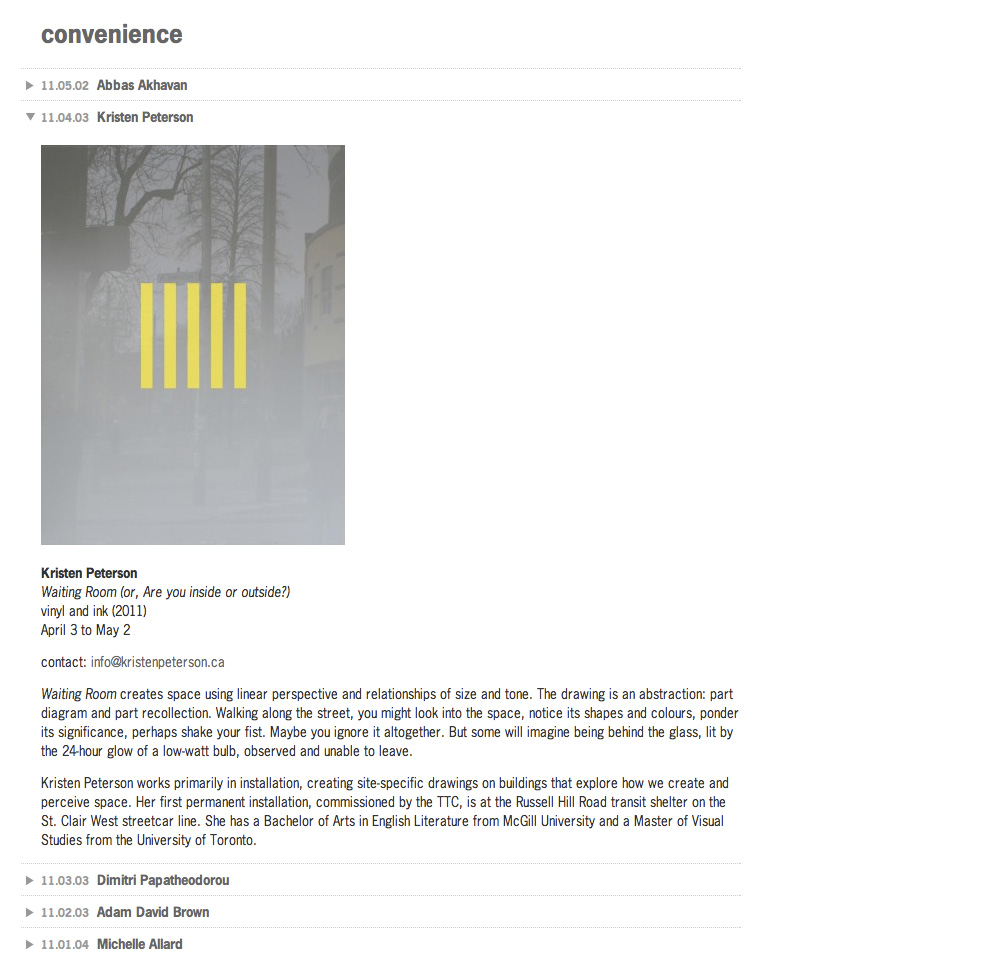
Website for Convenience Gallery
Convenience shows work “that engages, experiments, and takes risks with the architectural, urban, and civic realm.” The site architecture is straightforward: present the exhibitions in reverse chronological order. So for this redesign we applied simple accordion navigation to open-up past entries. The font is News Gothic.